BOOT.INI is gone, BCD is here
There's a little surprise waiting for you in Windows Vista: The boot options are different from those in previous versions of Windows. Learn more about the new boot tool called BCD.
 Windows Vista's little surprises
By Mark Minasi
Have a look inside Windows security guru Mark Minasi's latest book, Administering Windows Vista Security: The Big Surprises, with this excerpt from Chapter 1, "Administering Vista Security: The Little Surprises."
Now and then, I need to edit the boot.ini file in order to fix some configuration issue. Ever since NT 3.1, it's been an ASCII text file on the hard disk. With Vista, that's all changed; it maintains a boot file called the Boot Configuration Data or BCD, located on the boot volume (that is, the volume that the operating system (OS) boots from, no matter what Microsoft calls it) in a folder named BOOT.
I It's one of those files locked open by the operating system (like the *.EVT event log files), so you can't edit it in the normal manner, and because that means that it'll be tougher for the odd bit of malware to modify it. Don't go looking to edit it from the Control Panel, either; the Startup and Recovery dialog box is still in Control Panel hidden a few layers down, but where the XP version of that dialog had a button labeled "To edit the startup options manually, press Edit," that doesn't exist in Vista anymore. Instead, there's bcdedit.exe, a command-line tool for messing with Vista boot options.
Mark Minasi on Windows Vista security
Remote Desktop gets a bit more secure
Locking up the ports: Windows Firewall
boot.ini Review
The reason why I needed to modify boot.ini—normally a few-minute operation that became a multi-hour process, although it'll take you much less time after reading this—is that when I'm running test machines that are not connected to the Internet, either virtual or real, I'm often using slower machines, and in an effort to reduce my waiting time when playing with Vista, I like to turn off Data Execution Prevention (DEP). I do not recommend doing this on a production machine or, for that matter, any system into which you will type any data that you wouldn't want the world to know. But for test systems that you won't be sharing your vital data with, it's a great idea. With XP and 2003 systems, I could always shut off DEP by editing the boot.ini and adding the /NoExecute=AlwaysOff option to any boot.ini entry. But how to do that (and other things) to BCD? Well, to learn that, we've got to learn BCD-ese. Here's the boot.ini on my XP workstation:
(boot loader)
timeout=30
default=multi(0)disk(0)rdisk(0)partition(2)WINDOWS
[operating systems]
multi(0)disk(0)rdisk(0)partition(2)WINDOWS="XP x64 " /fastdetect /
NoExecute=OptOut
multi(0)disk(0)rdisk(0)partition(2)WINDOWS="XP x64 w/debug" /fastdetect /
NoExecute=OptOut /DEBUG
multi(0)disk(0)rdisk(0)partition(1)WINDOWS="Microsoft Windows XP Professional"
/fastdetect
This particular boot.ini offers three different OS options when booting this computer; those three options are in the section named [operating systems]. The three lines following it (each is long and broken on the page, but there would indeed be just three lines if we were viewing this on a wide computer screen) is called a "boot.ini entry." For example, consider this one:
multi(0)disk(0)rdisk(0)partition(2)WINDOWS="XP x64 " /fastdetect /
NoExecute=OptOut<
The multi(0)disk(0)partition(2)WINDOWS is just an arcane way of saying, "The actual OS is on the second partition of the first hard disk, and in the Windows directory on that partition." That's followed by two "switches," /fastdetect (which tells Windows not to bother looking around for devices attached to parallel and serial devices, which hasn't been generally necessary since 2000 came out), and /NoExecute=OptOut, which is the normal setting for DEP. Because there are three operating system entries, I see a boot .ini menu offering those three every time I boot my workstation. Other useful switches are /maxmem, which tell your copy of Windows to not use your system's RAM above some level, or /debug, which enables system debugging, or /numprocs, which tells your system to ignore some number of processors.
Above the [operating systems] section, there is a [boot loader] section. It specifies two things: how long to leave the menu on the screen, and which option to make default if the boot.ini options time out.
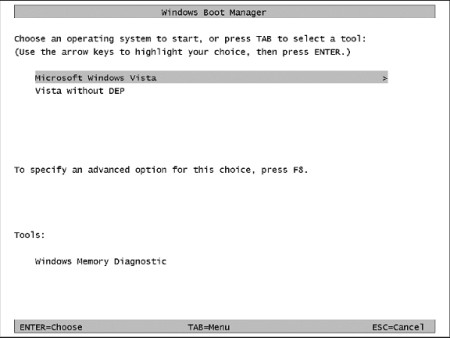
Now, if you're scratching your head saying, "I never see anything like that boot.ini file, or a boot-time menu at all in either XP or in Vista," that means that you've got only one OS entry. In that case, you don't get the menu on either XP or Vista. If you do have a Vista BCD with more than one entry, then you see a different boot menu from the one that you would have in the pre-Vista days, assuming that you had a multi-entry boot.ini. The Vista boot menu is text, but it's a bit snazzier than boot.ini, like the one that you see in Figure 1.1.
This menu shows two options: "Microsoft Windows Vista," the option built when Vista's installed, and "Vista without DEP," an option that I've created and that I'll show you how to create. In addition to the OS entries, Vista's Boot Manager also offers the option of booting straight to a memory tester—a convenient touch on Microsoft's part, particularly given that Vista systems typically need quite a bit more memory than XP systems.
FIGURE 1.1 A Vista system with multiple boot options
Check out excerpts from chapter eight, "Locking up the ports: Windows Firewall", of Mark Minasi's book, "Mastering Windows Server 2003 Upgrade Edition for SP1 and R2."
 Mark Minasi is a best-selling author, commentator and all-around alpha geek. Mark is best known for his books in the Mastering Windows series. What separates him from others is that he knows how to explain technical things to normal humans, and make them laugh while doing it. Mark's firm, MR&D, is based in Pungo, a town in Virginia's Tidewater area that is distinguished by having one -- and only one -- traffic light.