
.shock - Fotolia
Using Diskpart to create, delete, clean or extend disk partitions
The diskpart is one of the oldest tools in the Windows operating system that handles a wide range of disk management jobs, such as assigning drive letters and deleting partitions.
For basic disk operations on Windows systems, administrators can use diskpart, a command-line utility that remains useful for many different drive-related jobs more than 20 years after it was released.
Microsoft included the free disk management tool in Windows starting in 1999 with the Windows 2000 operating system. Diskpart scans for newly added disks, but it can also create, delete and resize drive partitions, and assign or reassign drive letters. Diskpart also works with drive volumes, virtual hard disks and removable media such as USB flash drives.
Microsoft continues to develop diskpart, and the latest version of the utility features 38 commands. To use diskpart, you list the objects, such as disks or partitions, and then select the object to change it.
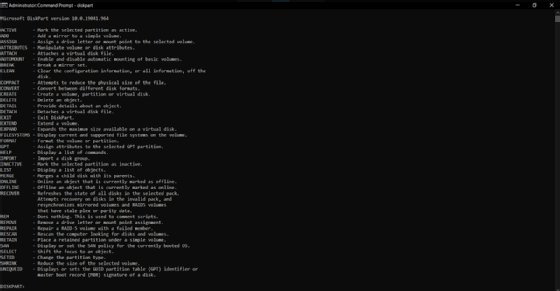
Using diskpart requires understanding data storage terminology
Diskpart use requires a basic understanding of Windows disk terminology. A basic disk is a storage device, such as hard drives, solid-state drives and USB flash drives, which you format with a Windows file system.
A basic disk can hold one or several partitions. A partition is a logical structure confined to a single disk.
A volume is a construct of the operating system that consists of one or more partitions that can span one or more disks.
Using diskpart
You should be careful when using diskpart because there is no undo function if you select the wrong object. Also, once a command is entered, even a destructive one, diskpart does not ask for confirmation before it runs. For example, if you perform an errant diskpart delete partition operation, you must use another utility, such as third-party disk management program, to recover the data or use a backup image to restore the drive.
Follow these tips to avoid issues when using diskpart:
- Do not use diskpart until you back up the disk you plan to modify.
- Exercise caution when using diskpart on systems that use dynamic disks, an older technology with advanced features that gave administrators a way to make a volume that spanned several disks.
- Check with your hardware vendor before using diskpart.
Creating a partition using diskpart
Using diskpart to partition your disk can help increase the I/O performance of hard disks newly added to a RAID array. The documentation for many server applications, such as Exchange Server, recommends using diskpart to create the primary or extended partitions. You can use a primary partition as the system partition; you can only use an extended partition for additional logical drive assignments.
The diskpart create command makes disk partitions, volumes on a single disk or multiple disks, and virtual hard disks.
For this and all following commands, you need to open the command prompt before you run diskpart. Type cmd from the run command window from the Windows search box or the run command dialog box that you open with the Windows+R key combination.
To create a partition:
- At a command prompt, type: diskpart
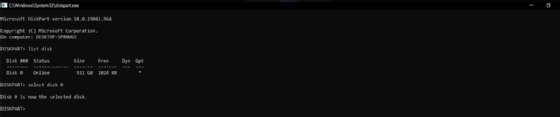
- At the DISKPART prompt, type list disk (Note the drive number you wish to manipulate.)
- At the DISKPART prompt, type: select disk 0 (This selects disk to edit; make sure to type in the disk number from step two.)
- At the DISKPART prompt, type create partition primary size=10000 (The size parameter refers to the size in megabytes. In this case, 10000 equals 10 GB. Change the word primary to extended to create an extended partition. If you do not set a size, then all available space on the disk will be used for the partition.)
- At the DISKPART prompt, type assign letter=D (Choose an unused drive letter.)
- At the DISKPART prompt, type exit
- From the command prompt, use the format command, or the Disk Management utility in Windows or any disk format tool to format the drive. You would typically use the NTFS file system during the initialization process.
Extending a partition using diskpart
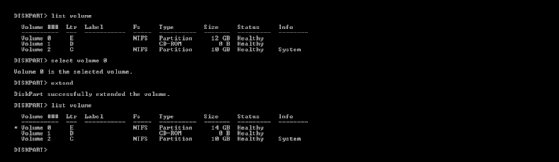
When it comes to adding space to a partition or volume, this method is superior to configuring two disks. Dynamic disk extensions only concatenate the newly added space, meaning they merely add the disk space to the end of the original partition without restriping the data.
Concatenation isolates performance within each partition and does not offer fault tolerance when the partition is configured in a RAID array. Diskpart restripes your existing data. This is beneficial when the partition is set up in a RAID array, because the existing partition data spreads across all the drives in the array, rather than just adding new space to the end, like the Disk Management utility.
To extend a partition:
- Verify that contiguous free space is available on the same drive and that free space is next to the partition you intend to extend with no partitions in between. Be sure you have a full backup before trying this method.
- At a command prompt, type diskpart
- At the DISKPART prompt, type select disk 0 (Selects the disk.)
- At the DISKPART prompt, type select volume 0 (Selects the volume.)
- At the DISKPART prompt, type extend (If you do not set a size, then diskpart will use all available space on the disk.)
- At the DISKPART prompt, type exit
Deleting a partition using diskpart
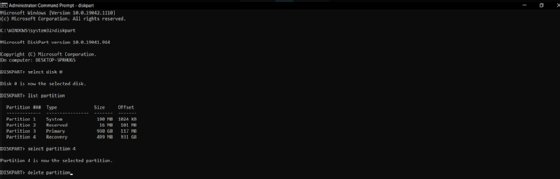
The delete command in diskpart removes dynamic disks, partitions, volumes and shadow copies. When you have multiple volumes on the disk or an unwanted partition, such as a recovery partition, this command will remove them and return them to unallocated space.
To delete a partition:
- At a command prompt, type diskpart
- At the DISKPART prompt, type select disk 0 (Selects the disk.)
- At the DISKPART prompt, type list partition
- At the DISKPART prompt, type select partition 4 (Selects the partition.)
- At the DISKPART prompt, type delete partition
- At the DISKPART prompt, type exit
Creating a volume using diskpart
When using dynamic disks in Windows, you can create four volume types with diskpart: volume mirror, RAID-5 volume, simple volume and striped volume.
To create a simple volume:
- At a command prompt, type diskpart
- At the DISKPART prompt, type select disk 0 (Selects the disk.)
- At the DISKPART prompt, type create volume simple size=1000 (The size is in megabytes.)
- At the DISKPART prompt, type exit
Cleaning a disk using diskpart
When you have an entire disk to wipe clean, you can use the diskpart clean command to convert all the stored data into unallocated space. This operation deletes all data on the disk by writing zeros on each disk sector. Diskpart also removes all partition and volume information from the selected drive.
To clean a disk:
- At a command prompt, type diskpart
- At the DISKPART prompt, type select disk 0
- At the DISKPART prompt, type clean all
- At the DISKPART prompt, type exit
Other ways to use diskpart
For maintenance work that requires a bootable USB flash drive, you can use diskpart to format the partition and set up the file system on the removable drive. Administrators can also use diskpart in both the Windows Preinstallation Environment and Windows Recovery Environment to correct disk problems or set up the machine for deployment.
With the diskpart /s switch, administrators can run scripts to automate tasks associated with setting up Windows machines, such as configuring the disks for multiple systems, adding a recovery partition or wiping all data from a disk to return it to a factory state.
Sample code from the Microsoft site gives examples of how to develop a text-based script file administrators can call from diskpart and run automatically. IT workers can run several diskpart scripts, but Microsoft recommends building in a delay of 15 seconds after a script runs to prevent issues.
For an in-depth tutorial on how to use diskpart for preparing a Windows 10 system for deployment, this blog post on the SearchEnterpriseDesktop site provides detailed instructions to use diskpart with a script.