How to create a Windows Vista boot CD with WinPE
Using WinPE, admins can launch Vista from a disk and use the deployment to create and restore images.

 |
|
 |
|
|
|
Eventually, I discovered that you could launch Windows Vista from a CD and use that Windows deployment for creating and restoring images. Let's take a look at the process of creating such a CD. Keep in mind, though, that a Windows boot CD has many other uses -- it can be used to run pretty much any executable file.
The first step is to download and install the Windows Automated Installation Kit (AIK) from Microsoft's Web site.
The file that you download will be a 992 MB .IMG file. In case you aren't familiar with the .IMG format, it is basically just a CD/DVD image file. Most commercial media burning software supports the use of image files, but they expect the files to be in .ISO format. The interesting thing about .IMG files from Microsoft is that they really are just .ISO files. That is, if you change the filename's extension to .ISO, you can treat the file as you would any other image file.
Once the AIK has been installed, open the Windows PE Tools Command Prompt by selecting the Windows PE Tools Command Prompt option from the Start | All Programs | Microsoft Windows AIK menu.
Now take a look at the Windows PE Tools Command Prompt window and verify that it points to the C:\Program Files\Windows AIK\Tools\PETools folder. If the command prompt is pointed to a different folder, you must change the path to point to this folder. After doing so, enter the following command:
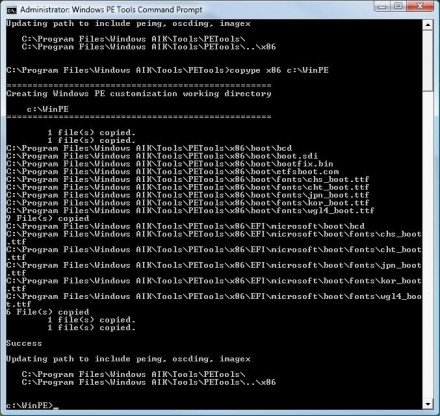
COPYPE X86 C:\WinPEThis command copies all of the X86 files into a folder called c:\WinPE, as shown in Figure A. It is worth noting that the c:\WinPE folder must not be created ahead of time.
Figure A
The files that we have copied so far make up the basic Windows PE template. However, you might want to copy some additional program files. For example, I mentioned before that my primary motivation behind creating a Windows PE boot disk is to make it easier to create images of my machines. That being the case, I am interested in a file named Imagex.exe that is located in the C:\program files\Windows AIK\Tools\x86 folder. I create a folder beneath my c:\winPE folder named C:\WinPE\ISO\Image and copy this file to the Image folder. Of course, this step is optional. The beauty of creating a Windows PE template is that you can include the executable files that best meet your needs.
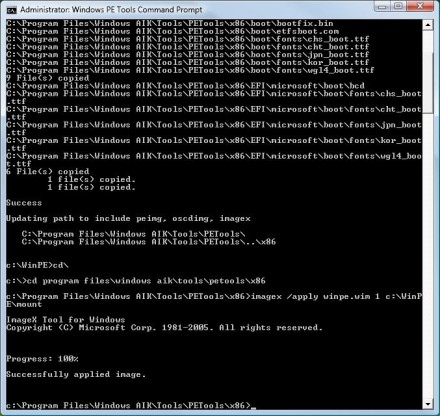
The next step is to apply the Windows PE boot image to your template folder. To do so, go back to the Windows PE Tools Command Prompt, and then switch to the c:\Program Files\Windows AIK\Tools\PETools\x86 folder. Then enter the following command:
Imagex /apply winpe.wim 1 c:\WinPE\mountFigure B shows what this command looks like in action.
Figure B
This next step is optional. You can use the PEIMG command to install drivers or prebuilt packages. Here is a list of the available packages and their functions:
| Package Name | Package Description |
| WinPE-HTA-Package | HTML support for applications |
| WinPE-Scripting-Package | Support for Windows Scripting Host |
| WinPE-XML-Package | Support for an XML Parser |
| WinPE-SRT-Package | Windows Recovery Environment Component |
| WinPe-MDAC-Package | Support for Microsoft Data Access Component |
If you want to install one or more of these packages, here is the syntax for doing so:
PEIMG /install=package-name C:\WinPE\MountFor example, if you wanted to install the WinPE-XML-Package, the command would look like this:
PEIMG /Install=WinPE-XML-Package C:\WinPE\MountOnce you are satisfied with the contents of your image, you must finalize the image. Remember that once you perform this step, you will not be able to make modifications to the image. To finalize the image, enter the following command:
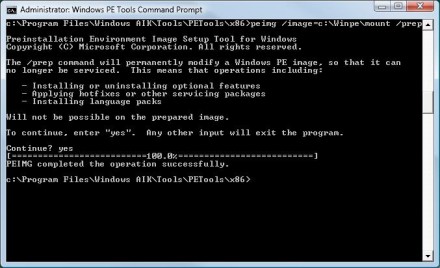
Peimg /image=c:\WinPe\mount /prepUpon entering this command, you will see a warning message similar to the one that's shown in Figure C. Enter the word Yes when prompted, and the image will be finalized.
Figure C
Remember, you must finalize the image.
It is now time to create a Windows Image file (a .WIM file) image of the .ISO template directory. To do so, enter the following command:
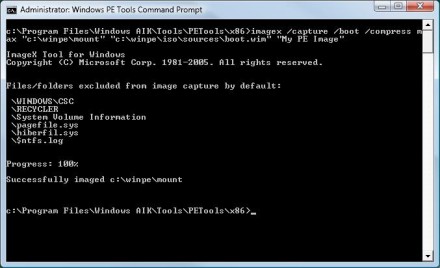
Imagex /capture /boot /compress max "c:\WinPE\mount" "c:\WinPE\iso\sources\boot.wim" "My PE Image"In case you are wondering, the first path specified in the command is the source file path. The second path is the destination path. The final bit of text used in the command is the name of the image that is being created.
You can see an example of the command in Figure D.
Figure D
The last step in the process is to create an .ISO image that you can burn to a DVD. To do so, enter the following command:
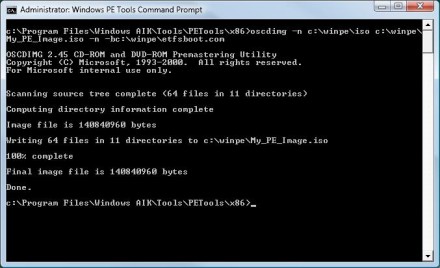
Oscdimg –n c:\WInPE\ISO c:\WinPE\My_PE_Image.iso –n –bc:\WinPE\etfsboot.comFigure E shows what the command should look like.
Figure E
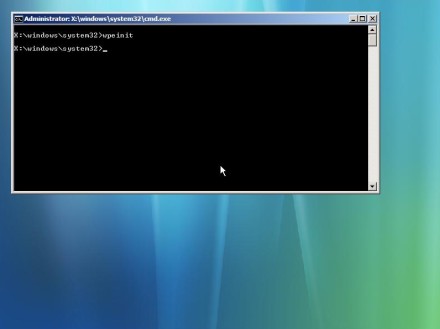
Now, just burn the .ISO image to a disk and boot from it. When your system boots, Windows PE will look something like what you see in Figure F.
Figure F
So that's how you create a Windows PE boot disk. Again, keep in mind that while I used Windows PE as a mechanism for creating system images, you can use Windows PE to run pretty much any executable file. I have known administrators to create Windows PE boot disks containing a variety of troubleshooting tools.
| Brien M. Posey, MCSE, has received Microsoft's Most Valuable Professional Award four times for his work with Windows Server, IIS and Exchange Server. He has served as CIO for a nationwide chain of hospitals and healthcare facilities, and was once a network administrator for Fort Knox. You can visit his personal Web site at www.brienposey.com. |