Part of:Basics of roaming profiles in the enterprise
Configuring folder redirection works with roaming profiles
Folder redirection can support a virtual desktop environment with roaming profiles by providing users with consistency when it comes to local files on their desktop.
Virtual desktop users may need to store many files, and folder direction is an easy way to centralize user data storage and ensure that files aren't destroyed upon the user's logoff.
Virtual desktop administrators often configure roaming profiles and folder redirection as a part of new virtual desktop implementations. These two configuration options can play an important role in the overall virtual desktop user personalization strategy due to their ability to improve UX, but there are also storage requirements and network bandwidth to plan for. Roaming profiles store registry settings, whereas folder redirection stores files.
A home folder is not the same as folder redirection. Although both reflect the designation of a centralized storage location for user data, there are some key differences. A home folder is a shared drive designation that maps at logon and enables the user to store personal files. On the other hand, folder redirection is an automated way to redirect specific folder contents.
When IT admins configure home folders for a virtual desktop environment, they should configure them specifically for Remote Desktop Services. To do so, they will need this group policy object (GPO): Computer Configuration > Policies > Administrative Templates > Windows Components > Remote Desktop Services > Remote Desktop Session Host > Profiles > Set Remote Desktop Services User Home.
Benefits of folder redirection for virtual desktops
Without folder redirection, saving files on a virtual desktop can present difficulties. For example, users may get confused if they see several options for saving files from a virtual desktop or lose hours of work if they save files on a non-persistent virtual desktop. Instead, IT can use folder redirection to automate and safely store files in a centralized repository. This way, users don't need to worry about where the virtual desktop stores their files.
Folder redirection is beneficial for virtual desktop environments because user data is centralized and easily accessible. In addition, IT can automate antivirus scans and data backups because the files are centralized within the storage repository. This will increase the overall security posture of the organization.
Folder redirection options
IT administrators use folder redirection to designate a centralized storage repository for all 13 folders eligible for redirection, which include the following:
AppData/Roaming
Contacts
Desktop
Documents
Downloads
Favorites
Links
Music
Pictures
Saved Games
Searches
Start Menu
Videos
IT must configure folder redirection for each folder; the redirected location does not need to be the same for all redirected folders.
The Documents and Desktop folders are most commonly redirected to centralized repositories. These two folders contain the largest amount of user-created files such as documents, spreadsheets and presentations. These are the files that users generally find most critical in their day-to-day work. Most users store these files within the Documents folder, but some prefer to keep them on the Desktop for quick access. As such, redirecting both of these folders ensures a better user experience.
Some organizations may redirect the Downloads, but this isn't always the best approach. The contents of the Downloads folder can grow extremely large if users haphazardly download files that are unnecessary in the long term. This is very common user behavior. IT staff should monitor user habits to determine whether this storage configuration is required. Frequently, users require access to downloaded files only during that virtual desktop session, thus there is no need to retain downloaded content.
Many organizations do not allow users to save files in the Music, Pictures, Saved Games or Videos folders. A primary reason for this practice is the immense size of these files and the potential storage implications of keeping them after a session is over. In addition, these files' general lack of a business-critical purpose is another reason not to keep them around. Often, administrators disallow users to save these types of data via other GPOs. As a result, redirecting these folders is often both unnecessary and undesirable. Of course, plenty of users within the workforce may work with video and audio files, so IT will have to consider those cases as separate from the average use case.
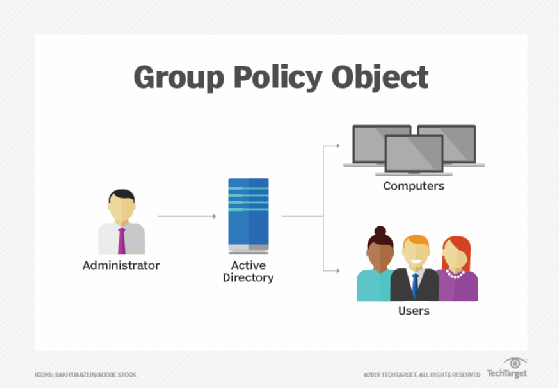
Figure 1.
IT typically doesn't redirect the Searches, Start Menu, Favorites, Contacts and Links folders for several reasons. Primarily, the data content files within these folders are quite minimal, and the storage benefits are negligible. In addition, the desktop may refer to this data frequently within the user session and would create latency as the data traverses the network. As a result, these files are more often housed within the roaming user profile.
When virtual desktop admins configure roaming profiles and folder redirection, they must configure folder redirection first.
IT rarely redirects the AppData/Roaming folder because many app settings are stored within this folder. For example, if an application stores custom settings in the AppData/Roaming folder, each time a user queries one of these settings, the read request traverses the network to the centralized repository. This could cause latency with the application and have a negative effect on UX. Many applications make these types of calls frequently because there are no delays for these operations in a traditional desktop environment. In addition, many applications store temporary or recovered files in the AppData/Roaming folder, and some of these files are quite large. As a result, the AppData/Roaming folder is not a prime candidate for redirection.
How to set up folder redirection alongside roaming profiles
When virtual desktop admins configure roaming profiles and folder redirection, they must configure folder redirection first. If IT enables folder redirection before roaming profiles, the user data is redirected to the designated centralized storage location and thus does not become part of the roaming profile. If IT configures after the roaming profile setting, user data that existed before folder redirection enablement will be housed within the roaming profile, thus creating non-alignment.
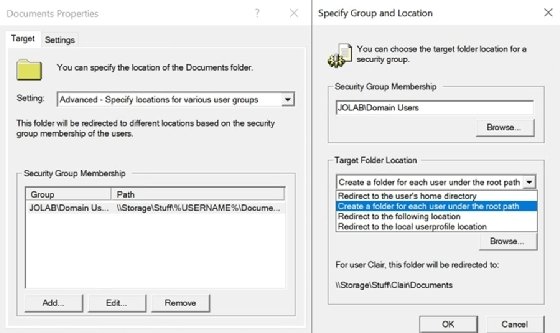
The process to configure folder redirection is straightforward. Within the designated GPO, the administrator should access User Configuration > Policies > Windows Settings > Folder Redirection. Once IT admins right-click the desired folders and select Properties, they can view the configuration options. The most common approach is to select the Advanced setting and designate the Target Folder Location as Create a folder for each user under the root path (Figure 2).
Figure 2. The Target Folder Location for the selected group of users, based on the GPO.
When an IT admin designates a home directory for the user, redirecting the target folder to the home directory may be a valid option (Figure 3). Redirecting to the local user profile location would not be wise in a virtual desktop environment because the local user profile is discarded when the non-persistent virtual desktop is deleted at the end of the session.
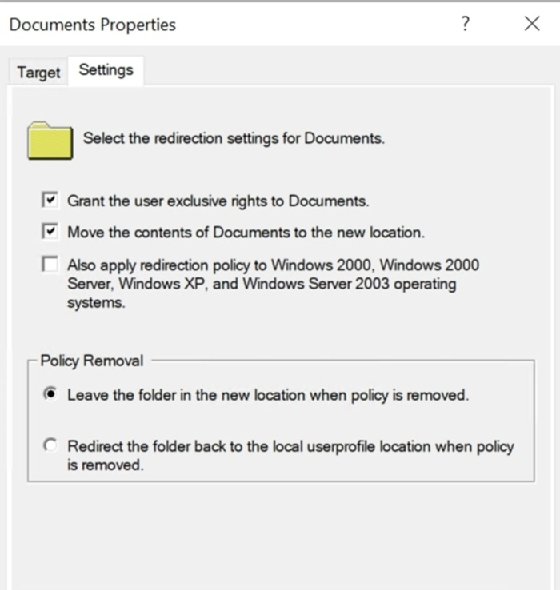
Figure 3. Detailed settings that IT can configure for the folder redirection process.
Generally, IT should keep the default configuration contained within the Settings tab. Once again, it would not be prudent to redirect the folder back to the local user profile location when the policy is removed because the local user profile would not be preserved.
When an IT admin configures roaming profiles and folder redirection, that admin must be a member of the Domain Admin group, Enterprise Admin group or Group Policy Creator Owners group. Testing is important to confirm the desired outcome once the admin configures the folder redirection GPOs. A lab environment is best to ensure no production impact, and a small group of pilot users can further validate results.
Once IT enables folder redirection and it functions properly, the administrators should closely monitor storage use. It is common for storage requirements to increase tremendously and quickly. If the virtual desktop reaches the upper storage limit, performance will slow, and users will not be able to utilize their redirected folder data properly.
Dig Deeper on Virtual desktop strategies and architecture