The ultimate guide to cybersecurity planning for businesses
This in-depth cybersecurity planning guide provides information and advice to help organizations develop a successful strategy to protect their IT systems from attacks.

Effective cybersecurity is crucial to businesses -- and it's becoming even more important as digital transformation initiatives, cloud computing, remote work and the use of AI technologies expand in organizations. Those trends make IT networks and systems, and the data they contain, more vulnerable to cybersecurity threats that can harm business operations, inflict substantial costs and damage a company's reputation.
Malicious attackers are increasingly targeting systems and applications that aren't properly protected. For example, in an annual survey of cybersecurity professionals conducted in 2023 by professional association ISACA, 38% of the 2,178 respondents said their organization was experiencing an increase in attempted cyberattacks -- larger than the percentages that said they were seeing the same number (31%) or fewer attacks (11%). Also, only 42% said they were completely or very confident in their cybersecurity team's ability to detect and respond to threats.
As a result, it's no surprise that many organizations are increasing their investments in cybersecurity. Gartner projected that combined spending on security and risk management will total $215 billion worldwide in 2024, up 14.3% from the $188.1 billion it estimated for 2023. In a survey on 2023 IT spending plans done by TechTarget's Enterprise Strategy Group (ESG) research division, 65% of 333 respondents involved in cybersecurity efforts said their organization expected to increase spending on cybersecurity technologies year-to-year. That topped the list of planned spending increases for all of the different technologies in the survey.
But spending all that money wisely is a must. To help with that, this comprehensive guide to cybersecurity planning explains what cybersecurity is, why it's important to organizations, its business benefits and the challenges that cybersecurity teams face. You'll also find an overview of cybersecurity tools, plus information on cyberattacks to be prepared for, cybersecurity best practices, developing a solid cybersecurity plan and more. Throughout the guide, there are hyperlinks to related TechTarget articles that cover the topics more deeply and offer insight and expert advice on cybersecurity efforts.
What is cybersecurity?
At heart, cybersecurity is the process of protecting IT networks, systems, applications and data from attacks, intrusions and other cyberthreats. Those threats mostly come from external attackers, but some cybersecurity incidents involve employees and other insiders who act maliciously or inadvertently cause security problems. In its most recent annual report on data breaches in businesses, released in June 2023, Verizon said 19% of 5,177 breaches it investigated for the report involved internal actors.
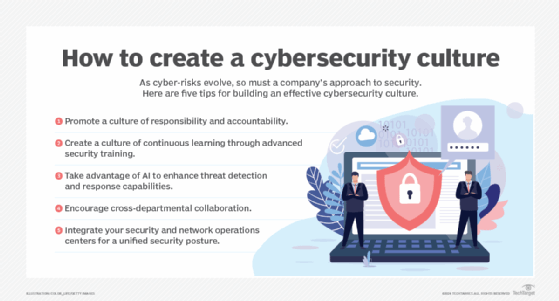
Cybersecurity programs incorporate a variety of processes and tools designed to help organizations deter, detect and block threats. They're typically run by a cybersecurity department or team that's led by the CISO, the CSO or another senior executive. However, a maxim among security professionals is that everyone in an organization is responsible for information security.
That makes building a strong cybersecurity culture through organization-wide security awareness and employee training vital to successful programs. Security teams need to do things such as promote individual responsibility and accountability for cybersecurity and encourage collaboration between different departments on security planning. Taking a human-centric approach to the cybersecurity program is another recommended step. For example, puzzles, games, simulations and role playing can make the training process less of a grind for people. "Your activities will need to be creative and impactful to resonate with the fatigued audience and motivate them to behave securely," Jinan Budge, a principal analyst at Forrester Research, wrote in a July 2023 blog post.
Why is cybersecurity important in business?
Weak or faulty cybersecurity protections can result in serious business problems. Data breaches that give attackers access to customer records and other sensitive information are a high-profile consequence of network intrusions and attacks. The following are some prominent examples:
- The 2023 exploitation of a zero-day vulnerability in MoveIt Transfer, a file transfer tool sold by Progress Software, that is believed to have led to breaches involving more than 2,700 organizations and 94 million people.
- A 2021 incident in which data on 533 million Facebook users was leaked in a hacking forum, an exposure that the company said was the result of attackers scraping the data from its social network before it updated a feature to prevent such actions in 2019.
- A breach disclosed by Microsoft in 2020 that resulted in 250 million customer service and support records from a 14-year period being exposed online.
- A multiyear breach at Marriott International Inc. that the hospitality company said exposed personal data from as many as 383 million guest records.
- Two major breaches at Yahoo, one in 2014 involving records from 500 million user accounts and the other exposing all 3 billion accounts the company had when it occurred in 2013.
In addition to potential lost business because of bad publicity and damaged customer relationships, such incidents can have a tangible financial impact. The average cost of breaches at 553 organizations worldwide between March 2022 and March 2023 was $4.45 million, according to IBM's "Cost of a Data Breach Report 2023." In some cases, the tab can be much higher. For example, as part of a settlement with U.S. agencies and state governments, consumer credit rating agency Equifax agreed in 2019 to pay up to $700 million in fines and restitution to victims of a data breach two years earlier that affected 147 million people in the U.S.
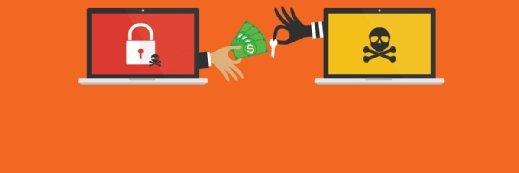
Other types of attacks directly aim to extract money from organizations. In particular, ransomware attacks, in which attackers encrypt data files and then demand payments to decrypt them, are now one of the most prevalent cyberthreats. In a 2023 survey commissioned by security software vendor Sophos, 66% of the 3,000 IT and cybersecurity leaders who responded said their organization was hit by a ransomware attack during the previous 12 months, with an average ransom payment of $1.54 million, plus another $1.82 million in estimated recovery costs.
Again, the cost can be significantly more than that for some organizations. MGM Resorts International estimated that a September 2023 ransomware attack would cost it $100 million, although its cyber insurance policy was expected to cover the full amount. Caesars Entertainment was hit by a similar attack at the same time and paid $15 million in ransom, according to The Wall Street Journal.
Distributed denial-of-service (DDoS) attacks that shut down websites and other online systems are also often used to try to get companies to pay money to the attackers.
What are the business benefits of cybersecurity?
The biggest benefit that a strong security posture provides is the ability to avoid business problems. Organizations can continue to operate smoothly without any disruptions or financial hits from attacks enabled by lax cybersecurity. Security teams should track various metrics on cybersecurity -- such as detected intrusion attempts, incident response times and performance comparisons against industry benchmarks -- to help show business executives and board members how security initiatives contribute to that outcome.
Effective cybersecurity efforts can also pay off more broadly by helping companies achieve their strategic and operational goals. In addition to preventing data breaches and other attacks, building a sustainable cybersecurity program helps support an organization's business objectives, including the environmental, social and governance initiatives that have become priorities in many companies.
What cybersecurity challenges do businesses face?
Cybersecurity is inherently challenging -- and even what appears to be a well-designed strategy can be undone by a single weak point. Another maxim among security professionals is that they need to stop all attacks to be successful, while attackers only need to break through an organization's defenses once. In trying to prevent that from happening, the challenges that cybersecurity teams face include the following:
- Constantly evolving security threats and attack methods.
- Increasing opportunities for attacks as data volumes, digital operations and remote work grow.
- A large attack surface due to the proliferation of systems, applications, mobile devices and other endpoint technologies.
- New security needs driven by expanding use of the cloud and IoT.
- Sophisticated and well-funded adversaries, including state-sponsored cybercrime efforts.
- The use of AI and machine learning technologies, including generative AI tools, to automate attacks.
- Budget, staffing and resource limitations.
- A shortage of workers with cybersecurity skills.
- A lack of cybersecurity awareness among business users.
Increasing enterprise use of AI in general and generative AI in particular also creates new cybersecurity concerns. For example, end users might inadvertently enter sensitive data into a GenAI tool such as ChatGPT, which could then expose the data to competitors or attackers. In addition, AI applications pose regulatory compliance risks and could enable data poisoning attacks that affect the behavior of AI models, among other issues. Organizations must now factor management of AI and GenAI security risks into their cybersecurity programs.
Another approach is outsourcing some or all cybersecurity operations to a managed security service provider (MSSP) to reduce costs and offload the challenges and complexities. The potential benefits of cybersecurity outsourcing also include increased reliability, faster deployment of new technologies, better access to security skills and more. Outsourcing can be extended to include information security leadership responsibilities through CISO as a service offerings. But there are possible drawbacks to consider. For example, an MSSP might not fully grasp an organization's culture and needs, and managed services might not produce the expected cost savings if the relationship is ineffective.
Cybersecurity systems and software
The cybersecurity technologies that security experts have said organizations should consider using to meet today's challenges of protecting networks and systems include the following:
- A zero-trust security framework that enforces strict authentication requirements on users and devices.
- Multifactor authentication approaches or newer passwordless authentication methods to verify user identities.
- Various threat detection and response technologies, including managed detection and response services and extended detection and response software; commonly referred to as MDR and XDR, respectively, they can help in remediating security threats and risks across an entire IT environment.
- Tokenization of sensitive data to better protect it from being exposed if a breach occurs.
- Separate tools for endpoint management and protection, data loss prevention and user behavior monitoring.
That's in addition to widely used technologies such as antivirus software, firewalls, virtual private networks (VPNs) and tools that support access control, email filtering, data encryption, network security monitoring, intrusion prevention, vulnerability management, penetration testing and other cybersecurity functions. The available tools include a plethora of free cybersecurity software options that organizations can use in addition to or as an alternative to commercial software products.
The Mitre ATT&CK framework, a free knowledge base that documents the behaviors and tactics of threat actors, can also help security teams strengthen their defenses against attacks. Programming languages are important components of the cybersecurity toolkit too. Team members should understand the potential cybersecurity uses of key programming languages and learn the ones they need to know to do their jobs.
Types of cyberattacks
In addition to financial gains from stolen bank account and credit card numbers, ransom payments and intellectual property theft, cyberattacks can aim to disrupt the operations of targeted organizations or be a form of protest against government and corporate policies. One of the complicating factors in preventing them is that there also are many different types of attacks to guard against.
The following are some of the most common -- and potentially damaging -- ones:
- Malware. Malicious software programs use social engineering tactics and other measures to fool users and evade security controls so that they can install themselves surreptitiously on systems and devices. Ransomware has become the most prominent type of malware. Other examples include rootkits, Trojan horses and spyware.
- Password attacks. Obtaining end-user and administrator passwords enables attackers to get around security protections and access an organization's IT systems. Examples of methods used to discover passwords include brute-force attacks, which use generic passwords or automated password-cracking tools; dictionary attacks, which employ a library of often-used words and phrases; and social engineering tactics, such as sending personalized emails to users from a fake account.
- DDoS. These attacks seek to overwhelm targeted websites, servers and other systems with a flood of messages, connection requests or malformed packets. They can be used both for ransom demands and to disrupt business operations.
- Phishing. Usually done via email, phishing involves an attacker posing as a reputable person or entity to trick victims into disclosing valuable information. Spear phishing targets specific individuals or companies, while whaling goes after senior executives.
- SQL injection. This type of attack uses malicious SQL queries to target databases. In a SQL injection attack, a query can be written to create, modify or delete data in a database or to read and extract data.
- Cross-site scripting. Known as XSS for short, cross-site scripting injects malicious scripts and code into web applications and website content. It can be used to steal session cookies, spread malware, deface websites and phish for user credentials, among other things.
- Botnets. A botnet is a group of computers and devices that have been infected with malware and are controlled remotely by attackers. Common uses include email spamming, click fraud campaigns and generating traffic for DDoS attacks.
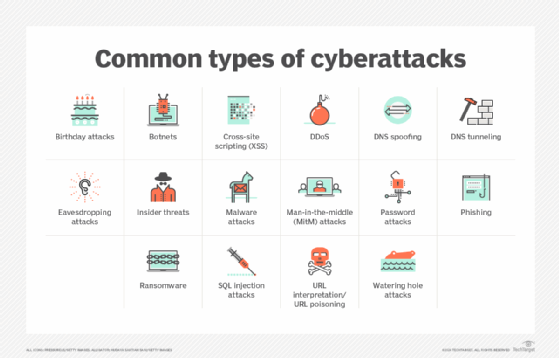
Other common cyberthreats include man-in-the-middle attacks, in which messages between two parties are intercepted and relayed; URL interpretation and poisoning attacks that modify the text of URLs to try to access information; DNS spoofing to send users to fake websites; DNS tunneling that uses malicious data in messages to evade security controls; watering hole attacks that embed malicious code in legitimate websites; eavesdropping attacks, which capture data from poorly secured communications traffic; and birthday attacks, a brute-force technique that can enable attackers to obtain encryption keys and user credentials.
Cybersecurity plans should also incorporate the possibility of an advanced persistent threat (APT), an attack that aims to maintain access to a network for an extended period without being detected. APT attacks are designed to steal sensitive data on an ongoing basis and typically are carried out by well-funded cybercrime groups, often ones controlled or sponsored by national governments.
What are cybersecurity best practices for businesses?
These are some best practices for cybersecurity teams to help ensure that their organization isn't victimized by cyberattacks:
- Update cybersecurity policies and practices as needed.
- Require strong authentication methods for all users.
- Refresh network security controls to keep them up to date.
- Prepare for compromises and other security incidents.
- Keep your knowledge of security topics and technologies current.
- Improve security awareness among employees.
On the last item, security awareness programs can be a waste of time if they're just a box-checking exercise -- a short presentation repeated annually, for example. Instead, cybersecurity training for employees should include engaging content and materials and be updated regularly to include information on new threats and operational requirements.
An ongoing security awareness program is also a must because of the increased number of people working from home in many organizations. Additional best practices on managing cybersecurity for remote workers include implementing VPNs and other fundamental security controls for them, strengthening data security and protection policies, and analyzing user behavior to help identify suspicious activities.
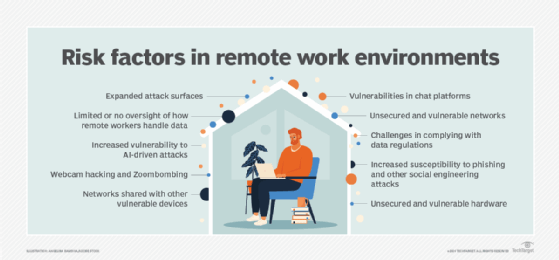
In addition, a cybersecurity initiative should have a defined process for managing the attack surface in an organization. The process should include continuous mapping and monitoring of the attack surface, plus automation of data classification and protection measures. As part of attack surface management, security teams also commonly think like attackers to help identify potential points of attack in IT systems. An incident response plan that details what to do when attacks happen is another important element of a cybersecurity program.
A strong program for governing cybersecurity efforts is required too. Effective cybersecurity governance will help ensure that everyone in an organization is working toward common goals and adhering to the organization's security policies and procedures.
How can you develop a cybersecurity plan?
The planning process should start with a cybersecurity risk assessment that identifies key business objectives, essential IT assets for achieving those goals and potential cyberattacks -- as well as how likely the attacks are to occur and what kinds of business impacts they could have. The following five-step process can be used to assess cybersecurity risks:
- Scoping the assessment.
- Risk identification.
- Risk analysis.
- Risk evaluation and prioritization.
- Documentation of risk scenarios.
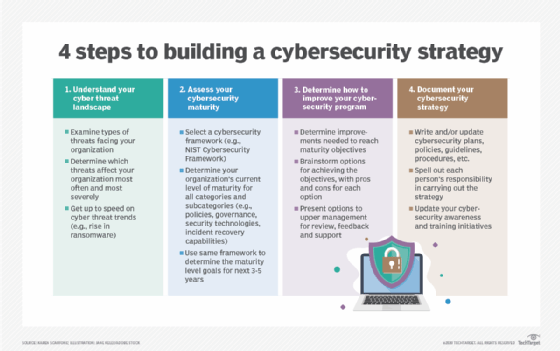
Next, an organization can move on to developing a cybersecurity strategy, which should be a high-level plan for the next three to five years -- although such strategies often must be updated sooner than that. Strategy development steps include understanding the threat landscape, assessing your current and desired cybersecurity maturity levels, deciding what to do to improve cybersecurity and documenting specific plans, policies, guidelines and procedures. The strategy should cover all aspects of cybersecurity, also including communications security, or COMSEC, measures designed to protect telecommunications systems.
An effective security plan also requires a budget, of course. In creating a cybersecurity budget, CISOs and other security leaders should allocate sufficient resources to different aspects of the security process, including compliance, training and ongoing risk assessments, while also ensuring that security programs can support new business initiatives and changes in business priorities.
What is the future of cybersecurity in business?
As mentioned above, one of the biggest trends affecting cybersecurity is the increase in remote work. That was already an issue before the COVID-19 pandemic significantly accelerated the shift to working from home, and it's an ongoing concern for cybersecurity teams, despite efforts by many companies to bring workers back to the office. In a list of top cybersecurity trends in 2024, Gartner cited the expanded attack surfaces that have resulted partly from the growing ranks of remote workers as a driver for organizations to implement continuous threat exposure management programs. That's a concept it first outlined in 2022 for more closely aligning cybersecurity efforts with business operations and objectives.
Other trends that are shaping future cybersecurity needs and challenges include the following items:
- Increased security automation through AI. While AI and machine learning can aid attackers, they can also be used to automate cybersecurity tasks. For example, AI tools can quickly detect potential threats in security event data, suggest possible fixes for vulnerabilities and identify patterns of unusual behavior and malicious activities that humans might not see. However, security teams need to take a careful approach to implementing AI technologies -- potential drawbacks include heavy resource utilization and the risk of getting incorrect results if AI and machine learning models are trained on insufficient or flawed data.
- Zero-trust security adoption. Zero-trust principles assume that no users or devices should be considered trustworthy without verification. Implementing a zero-trust approach can reduce both the frequency and severity of cybersecurity incidents, along with other zero-trust benefits.
- Continued improvements in response capabilities. In particular, organizations must be prepared to respond to large-scale ransomware attacks so they have a strategy in place for handling such incidents before they occur.
- Recognizing supply chain security risks. Discovered in 2020, the massive SolarWinds backdoor attack prompted the U.S. Securities and Exchange Commission to file fraud and internal control failure charges against the software vendor and its CISO in October 2023. The attack against government and enterprise networks illustrates the potential cybersecurity risks that supply chains pose -- a danger that calls out for improvements in security strategies and technologies. Indeed, Gartner's list of top 2024 trends includes enhancing management of third-party cybersecurity risks.
Increased adoption of secure access service edge technology -- better known by its acronym, SASE -- and security operations centers are also among the expected trends in cybersecurity, as are emerging measures to help organizations defend themselves against possible attacks driven by quantum computing. Another emerging concept is a cybersecurity mesh architecture, also outlined by Gartner, that applies a multilayered approach to help manage security in complex IT environments.
Cybersecurity skills and career paths
According to a July 2023 research report published by ESG and Information Systems Security Association (ISSA) International, a combined 71% of 301 surveyed ISSA members said their organization was being somewhat or significantly affected by the shortage of skilled cybersecurity professionals. Only 5% reported that the skills gap had improved over the past two years, and 54% said it got worse.
Steps that can help mitigate the problem include recruiting new workers from groups of people who are underrepresented in IT now, building skills in-house and better supporting existing security staffers so they're less likely to take another job.
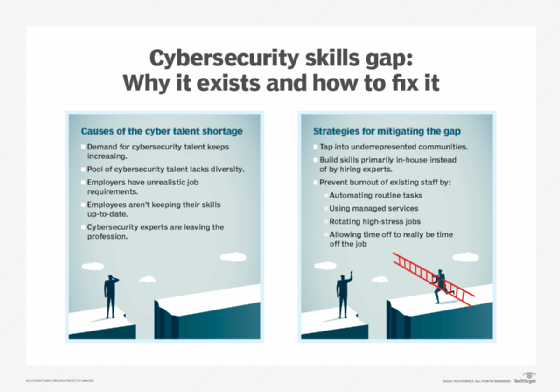
The ongoing skills shortage does mean there are lots of job opportunities for both current and prospective cybersecurity workers. Some of the most in-demand cybersecurity positions in organizations include cybersecurity engineers, security analysts, network security architects, security software developers and penetration testers. ISSA has mapped out a five-step career path in cybersecurity that includes those positions and others, culminating at the security leader level.
The key skills for cybersecurity professionals to possess -- and that organizations should look for in job candidates -- include a combination of technical skills and soft skills such as creativity and effective communication. Applicants should also be prepared to answer common cybersecurity job interview questions, including why they want to pursue a career in the field and what aspect of it interests them the most.
Cybersecurity certifications and online courses
Experienced cybersecurity professionals looking to advance their careers, and new workers hoping to get into the field, can bolster their skill sets and résumés by obtaining certifications offered by various industry groups and IT vendors. The top cybersecurity certifications that are available include a combination of entry-level and security management ones, as well as advanced technical programs for penetration testers, ethical hackers and other positions.
Online courses are another avenue for bolstering cybersecurity knowledge and skills. A large number of free and paid cybersecurity courses are offered by courseware providers, industry groups, academic institutions and U.S. federal agencies.
Craig Stedman is an industry editor who creates in-depth packages of content on business intelligence, analytics, data management and other types of technologies for TechTarget Editorial.